A cost cheatsheet for running a product cheaply: free-tier hosting, serverless databases, auth, and …
/user/kayd
@
devops
:~$
cat atuin.md
Atuin Cheatsheet Atuin Cheatsheet


Karandeep Singh
• 6 minutes
Summary
My Atuin notes. Search keybindings, filter and search modes, the search flags worth knowing, sync and account commands, stats, config essentials, and troubleshooting — checked against Atuin 18.19.0.
Atuin replaces shell history with a SQLite database and puts a real search screen on
Ctrl-R. These are the commands and keys I actually use. Everything checked against
Atuin 18.19.0.
For what it is and why it is worth installing, see Stop Pressing the Up Arrow. For the panes you run it in, the tmux cheatsheet.
Install and wire up
curl --proto '=https' --tlsv1.2 -LsSf https://setup.atuin.sh | sh   # official installer
brew install atuin                                                  # macOS / Linuxbrew
cargo install atuin --locked                                        # from source
paru -S atuin                                                       # Arch
echo 'eval "$(atuin init bash)"' >> ~/.bashrc
echo 'eval "$(atuin init zsh)"'  >> ~/.zshrc
echo 'atuin init fish | source'  >> ~/.config/fish/config.fish
Reload the shell — already-open tabs never read the new line:
source ~/.bashrc      # or: exec bash
source ~/.zshrc       # zsh
exec fish             # fish
atuin init flag | Effect |
|---|---|
--disable-ctrl-r | Leave Ctrl-R bound to your shell’s own search |
--disable-up-arrow | Leave the up arrow alone |
--disable-ai | Leave ? alone |
Shells: bash, zsh, fish, nushell, xonsh, PowerShell.
bash: no extra install needed
atuin init bash bundles bash-preexec. It uses ble.sh or your own bash-preexec if
you already have one, otherwise it loads its own copy. Requires bash >= 3.1.
| Env var | Effect |
|---|---|
ATUIN_NO_BUILTIN_PREEXEC=1 | Do not load the bundled bash-preexec (use your own) |
Only if you want to manage it yourself:
Expand your knowledge with Ansible Cheatsheet
# bash-preexec — a single file
curl -fsSL https://raw.githubusercontent.com/rcaloras/bash-preexec/master/bash-preexec.sh \
  -o ~/.bash-preexec.sh
echo '[[ -f ~/.bash-preexec.sh ]] && source ~/.bash-preexec.sh' >> ~/.bashrc   # BEFORE atuin init

# ble.sh — full line editor, also gives syntax highlighting and completion
curl -fsSL https://github.com/akinomyoga/ble.sh/releases/download/nightly/ble-nightly.tar.xz \
  -o /tmp/ble.tar.xz
tar xJf /tmp/ble.tar.xz -C ~/.local/share
echo 'source ~/.local/share/ble-nightly/ble.sh' >> ~/.bashrc                   # BEFORE atuin init
Import existing history
Import once, before you start relying on search.
atuin import auto reads
the shell history file that is already on disk; once Atuin is recording, the
old file stops growing and a later import brings in nothing new.atuin import auto # detect the current shell
atuin import bash
atuin import zsh
atuin import fish
atuin import nu
atuin import xonsh
atuin import powershell
Also accepts zsh-hist-db, nu-hist-db, xonsh-sqlite, replxx, resh.
Import copies from your old history file. It does not delete or rewrite it.
Deepen your understanding in Docker Cheatsheet
Search screen keys
| Key | Action |
|---|---|
Ctrl-R | Open search — press again to cycle filter mode |
Up arrow | Also opens search |
Enter | Run the selected command |
Tab | Put it on the prompt to edit before running |
Alt-1 … Alt-9 | Jump to result 1–9 |
Esc / Ctrl-C | Cancel |
Filter modes
What you are searching. Cycle with repeated Ctrl-R, or set filter_mode in config.
Discover related concepts in MSK vs Kinesis Cheatsheet (Cost & When to Choose)
| Mode | Scope |
|---|---|
global | Everything, every machine (default) |
host | This machine only |
session | This terminal session only |
directory | Commands run in the current directory |
workspace | The current git repo |
session-preload | Session, preloaded |
atuin search --filter-mode directory deploy
atuin search --filter-mode host kubectl
Search modes
How your typing is matched. Set search_mode in config.
| Mode | Behaviour |
|---|---|
fuzzy | Letters in order, gaps allowed (default) |
prefix | Must start with what you typed |
fulltext | Match anywhere in the command |
daemon-fuzzy | Fuzzy, served by the background daemon |
skim was removed — still accepted, but only as an alias for fuzzy.
Uncover more details in Bash CLI One-Liners Cheatsheet
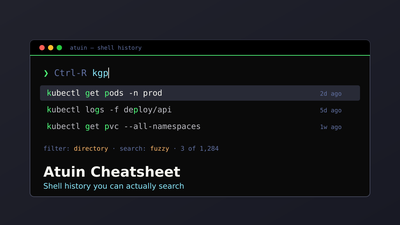
atuin search --search-mode fuzzy "kgp" # finds: kubectl get pods
Non-interactive search
| Flag | Does |
|---|---|
--limit N | Cap results |
--offset N | Skip the first N |
-c, --cwd DIR | Only commands run in DIR |
--exclude-cwd DIR | Skip a directory |
-e, --exit N | Only commands that exited N |
--exclude-exit N | Skip commands that exited N |
--after "1 day ago" | Only after this time |
-b, --before DATE | Only before this time |
-i, --interactive | Open the search UI |
atuin search kubectl
atuin search --limit 5 docker
atuin search --cwd /srv/app terraform
atuin search --exit 0 make                 # only what worked
atuin search --exclude-exit 0 make         # only what FAILED
atuin search --after "1 day ago" aws
atuin search --before "2026-08-01" psql
Sync and account
History is end-to-end encrypted with a key that never leaves your machine, so the hosted server cannot read it. Self-host anyway if the policy is that command history must not leave your network:
# ~/.config/atuin/config.toml
sync_address = "https://atuin.internal.example.com"
atuin key            # print the encryption key — store it in a password manager
atuin login -u you   # on a second machine, then paste the same key
atuin sync -f        # force a full sync rather than an incremental one
Lose the key and the synced history is unrecoverable by design; there is no reset on the server side. Back it up the day you create the account.
atuin register -u <username> -e <email>    # create account
atuin key                                  # PRINT ENCRYPTION KEY — save it
atuin login -u <username>                  # other machines, asks for that key
atuin sync                                 # sync now
atuin sync -f                              # force full sync
atuin status                               # sync status
atuin logout
atuin account delete
History is encrypted client-side. Lose the key and the history is unrecoverable — the server only ever had ciphertext.
Enrich your learning with Bash CLI One-Liners Cheatsheet
Package configuration
Configuration atuin-sync
atuin key prints the only copy of your encryption key. The sync server stores ciphertext
and nothing else, so it cannot reset or recover it for you.
Save the key somewhere you will still have it after this laptop dies.
Do you accept?
< Yes >< No >
Stats
atuin stats                    # since the beginning
atuin stats last week
atuin stats --count 20         # top 20 instead of top 10
atuin stats --ngram-size 2     # count "git commit" separately from "git push"
config.toml
~/.config/atuin/config.toml — print the commented default with atuin default-config.
Master this concept through Go Concurrency Cheatsheet
| Option | Default | Notes |
|---|---|---|
filter_mode | global | Set to directory or workspace — the setting that matters |
search_mode | fuzzy | prefix, fulltext, fuzzy, daemon-fuzzy |
style | compact | Or full |
inline_height | 40 | 0 = full-screen takeover |
show_preview | true | Preview pane for long commands |
enter_accept | true | false = Enter puts it on the prompt instead of running |
keymap_mode | emacs | Or vim-normal / vim-insert |
secrets_filter | true | Keeps token-shaped strings out of the DB — leave on |
auto_sync | true | |
sync_frequency | 5m | |
sync_address | https://api.atuin.sh | Change for self-hosted |
workspaces | false | Treat git repos as workspaces |
update_check | true |
history_filter = ["^secret-cmd", "^curl .*token"]   # never record these commands
cwd_filter = ["^/very/secret/directory"]            # never record from these dirs
Troubleshooting
atuin doctor      # run this first — catches missing shell init, bash-preexec, stale daemon
atuin info        # where config and database live
atuin --version
Failed to find $ATUIN_SESSION in the environment — you are running atuin search
outside an interactive shell (a script, cron, CI). The shell init normally exports it:
Delve into specifics at AWS CloudFormation Cheatsheet
export ATUIN_SESSION=$(atuin uuid)
Other subcommands
atuin history list        # list history
atuin dotfiles            # sync aliases and env vars
atuin scripts             # save and run parameterised scripts
atuin kv                  # small synced key-value store
atuin wrapped             # year in review
atuin daemon              # background daemon (experimental)
atuin mcp                 # MCP server exposing history search to AI tools
atuin uuid                # generate a UUID
atuin default-config      # print the default config.toml
atuin gen-completions     # shell completions
Paths
Question
Your shell history is a record of every command that worked. Is it on exactly one machine right now, and what happens to it when that laptop is replaced?
| What | Where |
|---|---|
| History database | ~/.local/share/atuin/history.db |
| Config | ~/.config/atuin/config.toml |
| Default sync server | https://api.atuin.sh |
Similar Articles
Related Content
More from devops
Git cheatsheet: reset vs revert vs restore, rebase vs merge, reflog recovery, bisect, stash, …
Quick-reference tmux cheatsheet: sessions, windows, panes, copy mode, synchronize-panes, .tmux.conf …
You Might Also Like
Quick-reference Bash basics cheatsheet: variables, parameter expansion, conditionals, loops, arrays, …
Quick-reference Ubuntu terminal cheatsheet: apt and dpkg, snap, systemd and journalctl, ufw, users …
Contents