Learn kubectl annotate step by step: add, overwrite and remove annotations, record …
/user/kayd
@
devops
:~$
cat atuin-shell-history-search.md
Stop Pressing the Up Arrow: Searchable Shell History with Atuin Stop Pressing the Up Arrow: Searchable Shell History with Atuin


Karandeep Singh
• 12 minutes
Summary
Ctrl-R only matches one result at a time and forgets which directory you were in. Atuin swaps your shell history for a SQLite database and gives you a real search screen — what it does, why directory filtering changes your day, how encrypted sync works, and when it is not worth it.
You ran the right command last Tuesday. It was on a different machine, in a different directory, and it had four flags you are not going to reconstruct from memory. So you press the up arrow. And again. And forty more times.
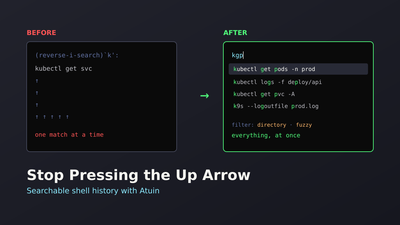
Ctrl-R is meant to solve this and mostly does not. It shows you one match at a time, it
matches only what you type in order, and it has no idea that you are standing in the project
directory where you ran the thing.
Atuin fixes the underlying problem, which is that your shell history is a text file that throws away everything useful.
I have just started running Atuin day to day, so treat this as a careful first look rather than years of scar tissue — I will come back and update it once I have opinions worth the name.
What it is not is guesswork. Every command and value below was run against a real Atuin 18.19.0 binary rather than copied from the docs, and that turned up two things most write-ups still get wrong. Both are flagged where they come up.
The actual problem with shell history
Open ~/.bash_history and look at it. One command per line. That is the entire data model.
It cannot tell you which directory you were in. It cannot tell you whether the command worked or exploded. It has no idea the command took nine minutes. And on a second machine, it knows nothing at all.
So every question you actually want to ask is unanswerable:
Expand your knowledge with Git Hooks: From Shell Scripts to a Go Webhook Server
- What was the deploy command for this project? — history has no concept of “this project”
- What did I run right before it broke? — no timestamps you can filter on
- Did that command even work? — no exit codes
- What did I run on the build server? — different file, different machine, gone
What Atuin does instead
Atuin swaps the text file for a SQLite database and records context for every command:
| Atuin records | The question it answers |
|---|---|
| The command | Same as before |
| The directory | “What do I run in this repo?” |
| The exit code | “Show me only what worked” — or only what failed |
| How long it took | “Which of these is the slow one?” |
| Machine and session | “What did I run on the server, not my laptop?” |
| When | “Sometime last Tuesday” becomes a filter |
Then it puts a real search screen on Ctrl-R: many results at once, fuzzy matching, and
filters over all of that context.
Deepen your understanding in AWS Lambda Configuration Explained: What to Care About (and Why)
SQLite is a database that lives in one ordinary file. Nothing to run, nothing to
configure — Atuin creates
~/.local/share/atuin/history.db and that is the whole story.
Your history stays on your disk in a standard format you can open with any SQLite tool.Getting it running
curl --proto '=https' --tlsv1.2 -LsSf https://setup.atuin.sh | sh
Or via a package manager: brew install atuin, cargo install atuin --locked, paru -S atuin.
Then wire it into your shell — this is the step people skip, and installing the binary
alone does nothing to Ctrl-R:
echo 'eval "$(atuin init bash)"' >> ~/.bashrc
echo 'eval "$(atuin init zsh)"'  >> ~/.zshrc
echo 'atuin init fish | source'  >> ~/.config/fish/config.fish
Then reload the shell — this is the step everyone misses:
source ~/.bashrc # or: exec bash
~/.bashrc is read once, when a shell starts. Any terminal tab you already had open began
life before that line existed, so it has no idea Atuin is there. New tabs pick it up on
their own; the ones already open have to be told. If you installed Atuin and Ctrl-R looks
unchanged, this is almost always why — nothing is broken, you are just talking to a shell
that started earlier.
It supports bash, zsh, fish, nushell, xonsh and PowerShell.
If you are on bash, you do not need to install bash-preexec. Plenty of guides tell you to, and it used to be true — it is not any more.
Bash has no built-in hook that fires before a command runs, which is the thing Atuin needs
in order to record anything. bash-preexec is the community shim that adds one. Modern
Atuin ships its own copy inside atuin init bash: it checks whether you already have a
hook (from ble.sh or your own bash-preexec), and if you do not, it quietly loads the
bundled one.
I confirmed this on Atuin 18.19.0 with neither installed — bash-preexec loaded? defined,
straight out of atuin init. All bash needs is version 3.1 or newer, which any machine
you are likely to touch already has.
You only care about this if you want to stop it: ATUIN_NO_BUILTIN_PREEXEC=1 disables the
bundled copy, which matters if you load your own and want to control the order.
Now bring your existing history across, so you are not starting from an empty screen:
Explore this further in Running SQL Over HTTPS with the RDS Data API (Aurora PostgreSQL)
atuin import auto
Import first, always. A history tool with no history is just a slower Ctrl-R, and the
temptation is to try it for ten minutes and conclude it does nothing. Import your existing
history and it is useful on day one — you are searching years of commands, not the four you
have typed since installing.
And note what import does not do: it copies from ~/.bash_history rather than
replacing it. Remove the eval line and you are exactly back where you started, which makes
this a genuinely cheap thing to try.
Directory filtering is the feature
Press Ctrl-R and you get a search screen. Press it again and it cycles what you are
searching:
| Filter mode | Searches |
|---|---|
global | Everything, every machine (default) |
host | Only this machine |
session | Only this terminal session |
directory | Only commands run in this folder |
workspace | The current git repo |
directory is the one that changes how you work, and it is worth being concrete about why.
Come back to a project after six months. You do not remember the build command, the test
invocation, or which of four docker compose files is the right one. Hit Ctrl-R twice and
you are looking at exactly the commands you last ran there — in order, with the ones that
worked distinguishable from the ones that did not.
That is not a faster search. It is a different question, one your text file could never answer.
Discover related concepts in Create Freeform Feature Flag from S3 Object
If you install Atuin and change one setting, make it filter_mode. Most people leave it on
global, get a slightly nicer Ctrl-R, and never discover the part that was worth
installing it for.
I would go further: workspace mode — scoped to the current git repo rather than the exact
folder — is usually the better default for anyone whose projects have more than one
directory in them. directory is precise; workspace is precise enough and matches how
people actually move around a repo.
Fuzzy search, and why it feels fast
Four search modes: prefix, fulltext, fuzzy (the default) and daemon-fuzzy.
Fuzzy means the letters have to appear in order, not next to each other. Typing kgp
finds kubectl get pods. Here is a real run:
atuin search --search-mode fuzzy "kgp"
2026-08-11 22:29:53	kubectl logs -f deploy/api	0s
2026-08-11 22:29:53	kubectl get pods -n prod	0s
Note the first result. kubectl logs -f deploy/api also contains k…g…p in order — the g
in logs, the p in deploy. Fuzzy matching is generous on purpose. You narrow it with
one or two more characters rather than typing the whole command.
Uncover more details in Bash String Functions: Search, Split, Count, Extract
A lot of writing about Atuin lists
skim as a search mode. It has been removed. It
is still accepted as an argument, but only as an alias for fuzzy — so if you have
search_mode = "skim" in an old config, you are running fuzzy and have been for a while.The gotcha that will bite you in a script
The search screen is interactive, but atuin search also works non-interactively, which is
where people hit this:
Error: Failed to find $ATUIN_SESSION in the environment.
Check that you have correctly set up your shell.
Nothing is broken and nothing needs reinstalling. Atuin’s shell init exports ATUIN_SESSION
in every interactive shell. A script, a cron job or a CI step never runs that init, so
nothing sets it. You set one yourself:
export ATUIN_SESSION=$(atuin uuid)
atuin search kubectl
That is precisely why atuin uuid exists as a subcommand. The error message points at shell
setup, which sends people off reinstalling when the fix is one line.
Once past that, the non-interactive search is genuinely useful:
Journey deeper into this topic with Sed Gotchas: GNU vs BSD and Safe In-Place Editing
atuin search --exclude-exit 0 make      # only the commands that FAILED
atuin search --cwd /srv/app terraform   # only in this directory
atuin search --after "1 day ago" aws    # time-boxed
--exclude-exit 0 is the incident-response one. After something breaks, “show me every
command that failed in the last two hours” reconstructs the timeline faster than scrolling
back through a terminal you may have already closed.
It is also the clearest illustration of why the database matters. That query is not a better search over the same data — it is a query your text file could not have answered at all, because it never recorded whether anything worked.
Sync, and the key you must not lose
Sync is optional. Skip register and nothing ever leaves your machine — Atuin is a
perfectly good local-only tool.
If you do want your laptop to know what you typed on the server:
atuin register -u <username> -e <email>   # first machine
atuin sync
atuin key                                 # PRINT THE KEY. SAVE IT NOW.

atuin login -u <username>                 # every other machine, asks for that key
atuin sync
Your history is encrypted on your machine before upload. The server stores ciphertext it cannot read, which is exactly what you want from a service holding every command you have ever run.
End-to-end encryption cuts both ways. Without the key from atuin key, a new machine cannot
decrypt the history it downloads, and nobody can recover it for you — not you, not
Atuin, because the server does not have it.
Put it in your password manager the minute you register. Not later.
Do not want to trust anyone else’s server? Point sync_address at your own — the server is
open source and self-hostable.
Enrich your learning with Deployment Automation: From SSH Scripts to a Go Deploy Tool
Settings worth changing
Config lives at ~/.config/atuin/config.toml; atuin default-config prints a fully
commented default.
filter_mode = "workspace"    # the setting that actually matters
search_mode = "fuzzy"
inline_height = 20           # 0 = full screen takeover
enter_accept = false         # Enter puts it on the prompt instead of running it
secrets_filter = true        # keeps things that look like tokens out of the database
Two of those deserve a note. secrets_filter is on by default and tries to keep API
keys and tokens out of the database — leave it on. enter_accept = false is worth
considering if you hit Enter reflexively: it hands the command to your prompt for review
instead of running it immediately. On a machine where your history contains
terraform destroy, that is not paranoia.
You can also refuse to record things at all:
Gain comprehensive insights from Adding an AWS Region to Aurora PostgreSQL (Global Database)
history_filter = ["^secret-cmd", "^curl .*token"]
cwd_filter = ["^/very/secret/directory"]
When it is not worth it
Honestly: if you work on one machine and rarely repeat long commands, plain Ctrl-R is
fine. Atuin is a database, a daemon and a sync account solving a problem you do not have.
It earns its place when either of these is true:
Master this concept through Sed for JSON: Emergency Patterns When jq Is Unavailable
- You have more than one machine. Laptop, work desktop, three servers. Synced history is the whole pitch.
- Your commands are long.
kubectlwith four flags,docker runwith six mounts,awscommands with ARNs in them. Retyping those is a real, repeated cost.
Start local and skip register entirely. Run it for a week with filter_mode set to
workspace and see whether you reach for it.
The failure mode I would warn against is setting up sync on day one, because it front-loads an account, a key to manage and a decision about whose server to trust — before you know whether you like the tool. Sync is the thing you add once you have caught yourself wishing your laptop knew what you typed on the server. Not before.
There is more in the box
Recent versions carry more than history search:
atuin stats --ngram-size 2   # top commands, counting "git commit" separately from "git push"
atuin doctor                 # checks for common setup problems — run this first when stuck
atuin dotfiles               # sync aliases and env vars alongside history
atuin scripts                # save and run parameterised scripts
atuin wrapped                # a year-in-review of your terminal
atuin mcp                    # expose history search to AI tools over MCP
That last one may interest you if you have been following along with
the MCP server I built for this blog — atuin mcp runs a
stdio MCP server, so an assistant can search your shell history as a tool.
Delve into specifics at Create Custom AMI of Jenkins | DevOps
The short version
Your shell history is a text file that forgets the directory, the exit code, the duration and the machine. Atuin records all four and gives you a search screen over them.
Install it, run atuin import auto, set filter_mode to workspace, and leave sync alone
until you miss it.
That is the order I started in myself, and it is the part I would defend regardless of how
the rest shakes out: the import is what makes it useful on day one, and the filter mode is
what makes it different from the Ctrl-R you already had.
For the commands and keybindings without the explanation, I keep a Atuin cheatsheet alongside this. If you live in a terminal all day, the tmux cheatsheet pairs with it.
Deepen your understanding in AWS Lambda Configuration Explained: What to Care About (and Why)
References
Question
How many times a day do you press the up arrow more than five times in a row?
Similar Articles
Related Content
More from devops
Cut AWS Lambda cost: what you are actually billed for, why more memory is rarely cheaper, the exact …
How I turned a Hugo blog into a public MCP server on Netlify — tools, resources and prompts over a …
You Might Also Like
Practical sed patterns for log analysis: extract errors, filter time ranges, anonymize PII, parse …
The sed gotchas that bite in production: GNU vs BSD differences, in-place editing safety, escape …
Use sed safely in CI/CD pipelines: idempotent edits, exit-code checks, dry-run patterns, and the …
Knowledge Quiz
Test your general knowledge with this quick quiz!
A set of multiple-choice questions to test your knowledge.
Take as much time as you need.
Your score will be shown at the end.
Question 1 of 5
Score: 0
Quiz Complete!
Your score: 0 out of 5
Loading next question...
Contents