Learn kubectl annotate step by step: add, overwrite and remove annotations, record …
/user/kayd
@
devops
:~$
cat aurora-add-aws-region-global-database.md
Adding an AWS Region to Aurora PostgreSQL (Global Database) Adding an AWS Region to Aurora PostgreSQL (Global Database)


Karandeep Singh
• 15 minutes
Summary
A hands-on walkthrough of extending an Aurora PostgreSQL cluster to a second AWS Region with Aurora Global Database, including the instance-class upgrade and reboot, why the whole cluster shows Modifying, the opt-in region gotcha, and how far regions and readers scale.
At the end of the Add a Reader article I said that surviving the loss of a whole AWS Region is a different feature called Aurora Global Database. This is that article. We take the same database-1 cluster from the setup guide, still living in us-east-1, and give it a second home in Canada so a regional outage does not take the data down with it.
This one has more moving parts than adding a reader, and it hit three real walls along the way. I left all three in, because they are exactly the things nobody warns you about.
Read this before you start: restarts and maintenance windows.
- Does it restart the instances? Only once, and only for the prep step. Upgrading the instance class (which we have to do) reboots each instance for a minute or two. Adding the region itself does not restart the primary, your writer keeps serving traffic the whole time.
- Does it need a maintenance window? No. The instance-class change lets you choose Apply immediately or defer to your weekly window, your call. Adding the region is an online operation with no window required.
Plan the one reboot, and you are fine.
Things you should know first
Aurora Global Database has a handful of rules that will trip you up if you meet them mid-task instead of up front. Here they are in one place:
Expand your knowledge with Unix Power Tools Every DevOps Engineer Should Know
- Burstable instances are not allowed.
db.t3anddb.t2classes cannot join a global database. You must run a memory-optimizeddb.rclass (for exampledb.r5.large) on the primary first. This is the wall most people hit. - The Secrets Manager managed master password is not supported. If your cluster uses the “Manage master credentials in AWS Secrets Manager” option, you have to switch to a self-managed password before you can go global.
- Encryption keys are per Region. A KMS key lives in one Region and cannot cross into another, so the secondary Region needs its own key. You pick it during the Add-Region step.
- New Regions may be “opt-in.” Regions launched after early 2019 (Canada West / Calgary is one) are switched off by default on your account and must be enabled first. More on this below, because it caused the third gotcha.
- A couple of features drop off. Backtrack is not available on global clusters, and you cannot stop and start a global database the way you can a single cluster.
- There are scaling limits. Up to 10 secondary Regions, and each secondary you add costs the primary one reader slot. Details near the end.
What “adding a region” actually does
Right now database-1 is a plain regional cluster. When you add a Region, Aurora converts it into the primary cluster of a global database and stands up a read-only secondary cluster in the Region you pick. The two are linked by replication that happens down in the Aurora storage layer, not by the database engine, so lag is typically under a second even across a continent. If us-east-1 ever goes dark, you promote the secondary and carry on.
Now the hands-on part.
Deepen your understanding in Tuning AWS Lambda for Cost: The Memory Myth, Measured
Step 1: Try it, and meet the first wall
Start optimistically. In the RDS console, Databases → database-1 → Actions → Add AWS Region. On a db.t3.medium cluster you get this instead of a wizard:
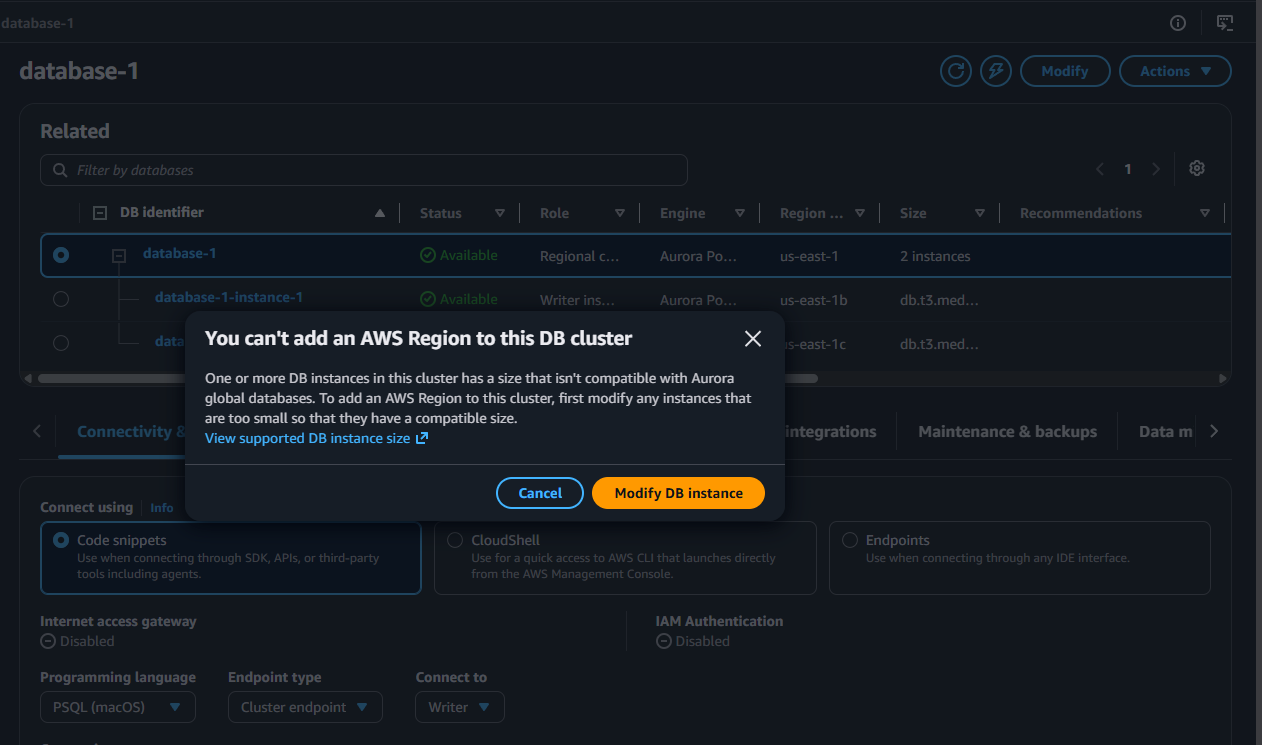
“You can’t add an AWS Region to this DB cluster. One or more DB instances in this cluster has a size that isn’t compatible with Aurora global databases. To add an AWS Region to this cluster, first modify any instances that are too small so that they have a compatible size.”
That is rule number one from the list above, in the flesh. Your db.t3.medium is burstable, and burstable classes are not allowed. Helpfully, the dialog has a Modify DB instance button that takes you straight to the fix.
Explore this further in Build and Deploy a Go Lambda Function
Step 2: Upgrade the instances to an r-class
On the Modify page, open the instance-class picker and switch the filter to Memory optimized classes (includes r classes). The smallest r-class Aurora offers is db.r5.large (2 vCPU, 16 GiB), which is plenty for a demo:
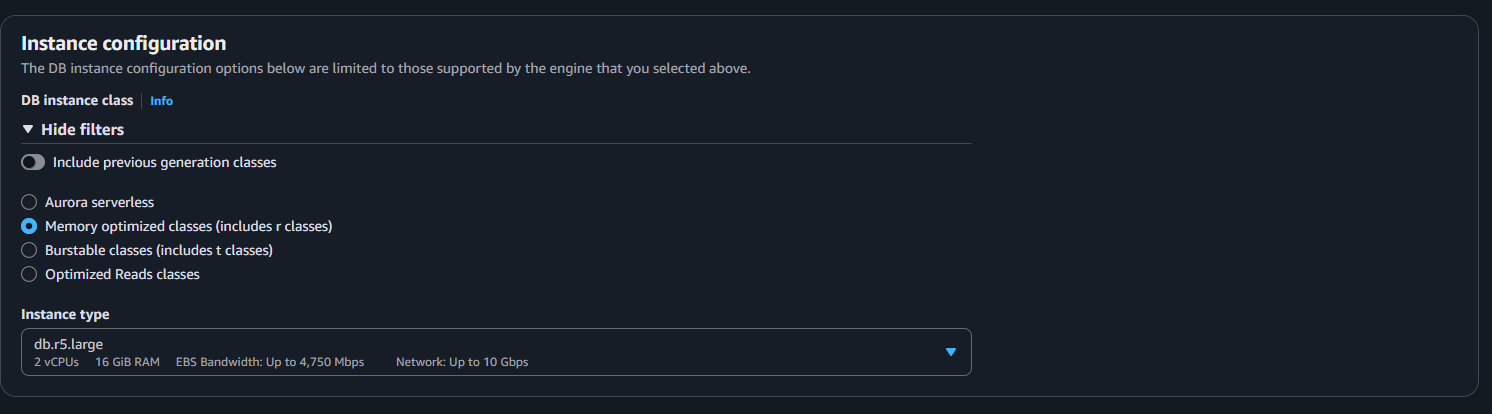
Click Continue, and the next page is the one that answers “will this reboot?” It shows the change (db.t3.medium to db.r5.large) and a Schedule modifications section:
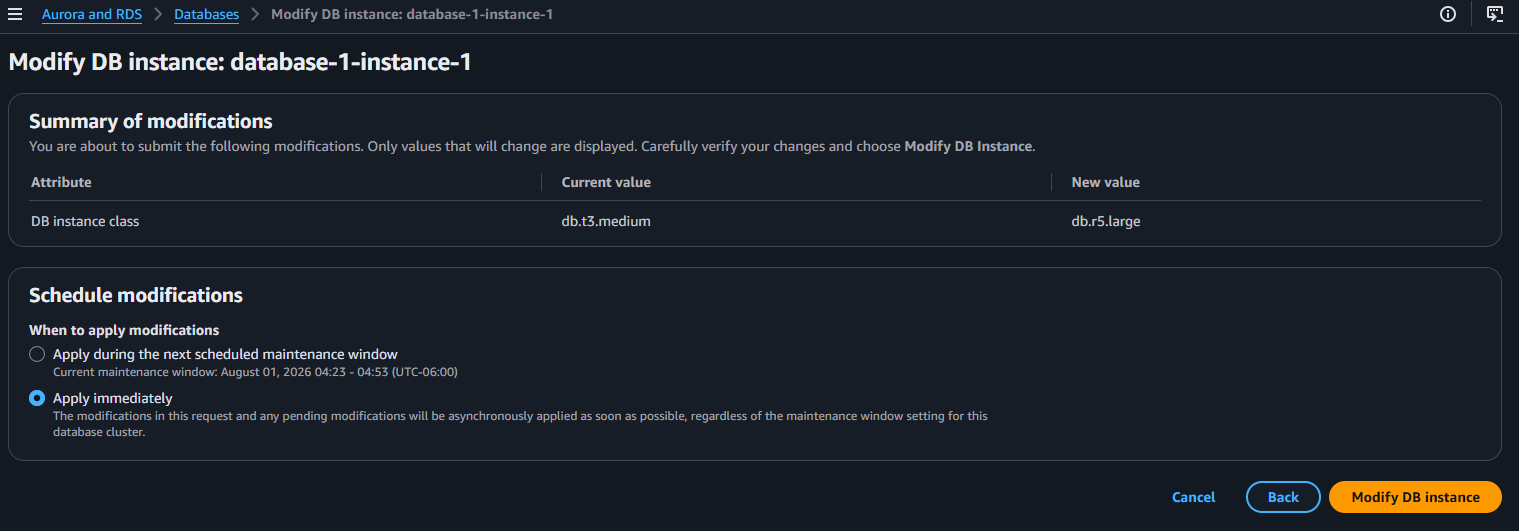
Pick Apply immediately so you are not waiting until Saturday, and submit. Changing the instance class is a compute swap, so the instance reboots. This is the one and only restart in the whole process.
Discover related concepts in AWS CLI Automation: From Bash Scripts to Go
If your cluster has a reader too (mine did, from the previous article), modify the reader first, then the writer. When the writer reboots, Aurora fails over to the already-upgraded reader, so the interruption is a roughly 30-second failover instead of a full reboot wait. Every instance in the cluster has to be a compatible size, so both need the change either way.
Step 3: Add the region
Wait until every instance shows Available at the new size. If you jump the gun while they are still upgrading, you get the second wall:
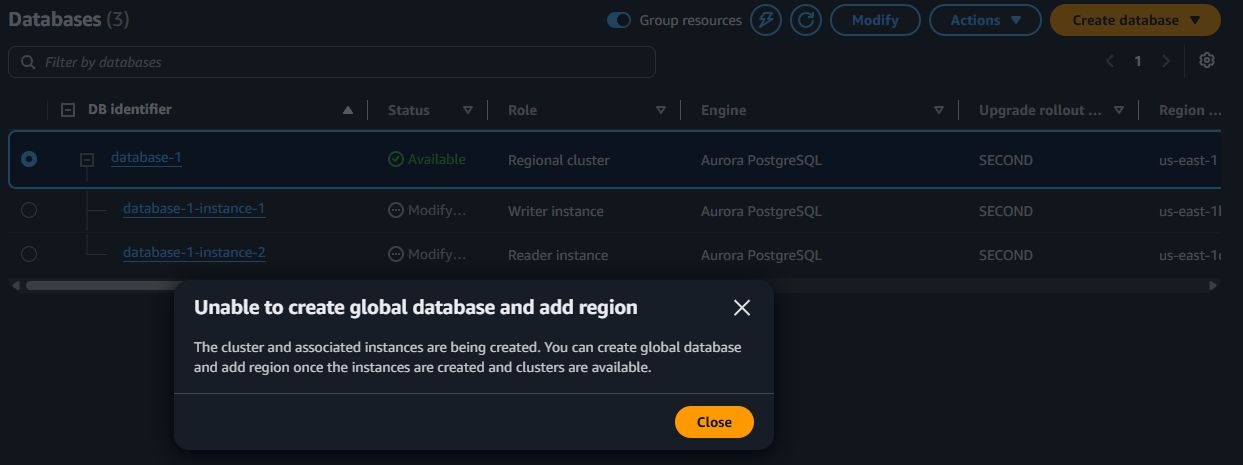
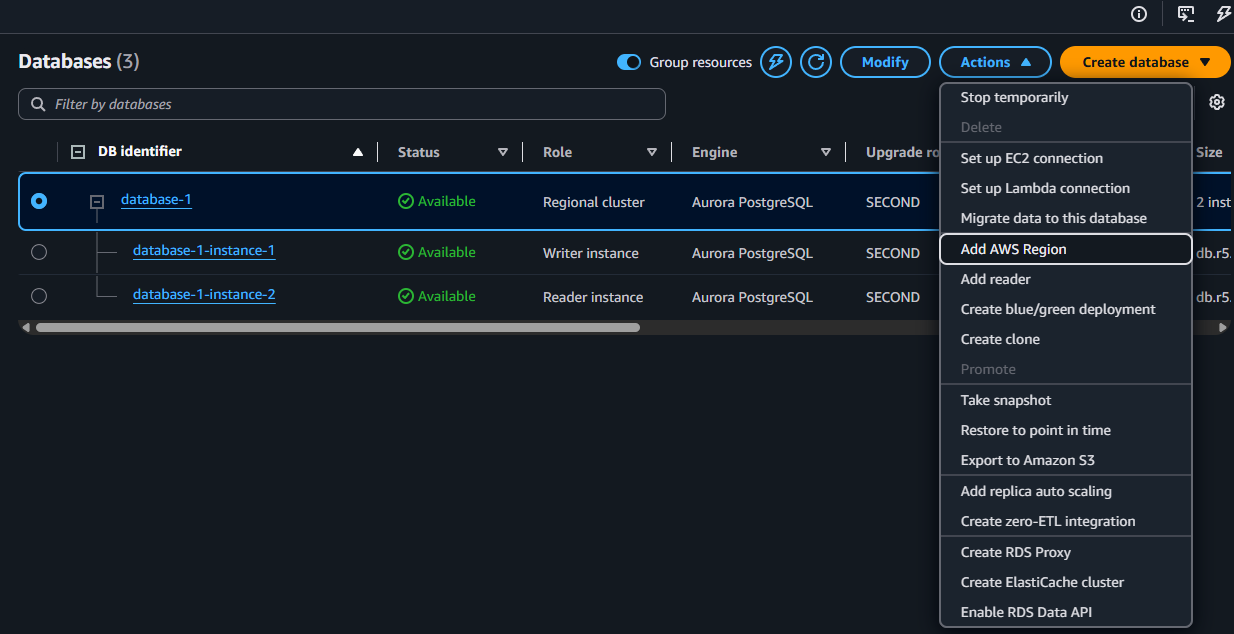
That is just timing. The instances are still Modifying, and Aurora will not restructure a cluster that is mid-change. Refresh, wait for Available, and try again. This time Actions → Add AWS Region opens the real wizard:
The wizard asks for a Global database identifier (I used gb-database), a Secondary region, and the storage and instance settings for the new cluster:
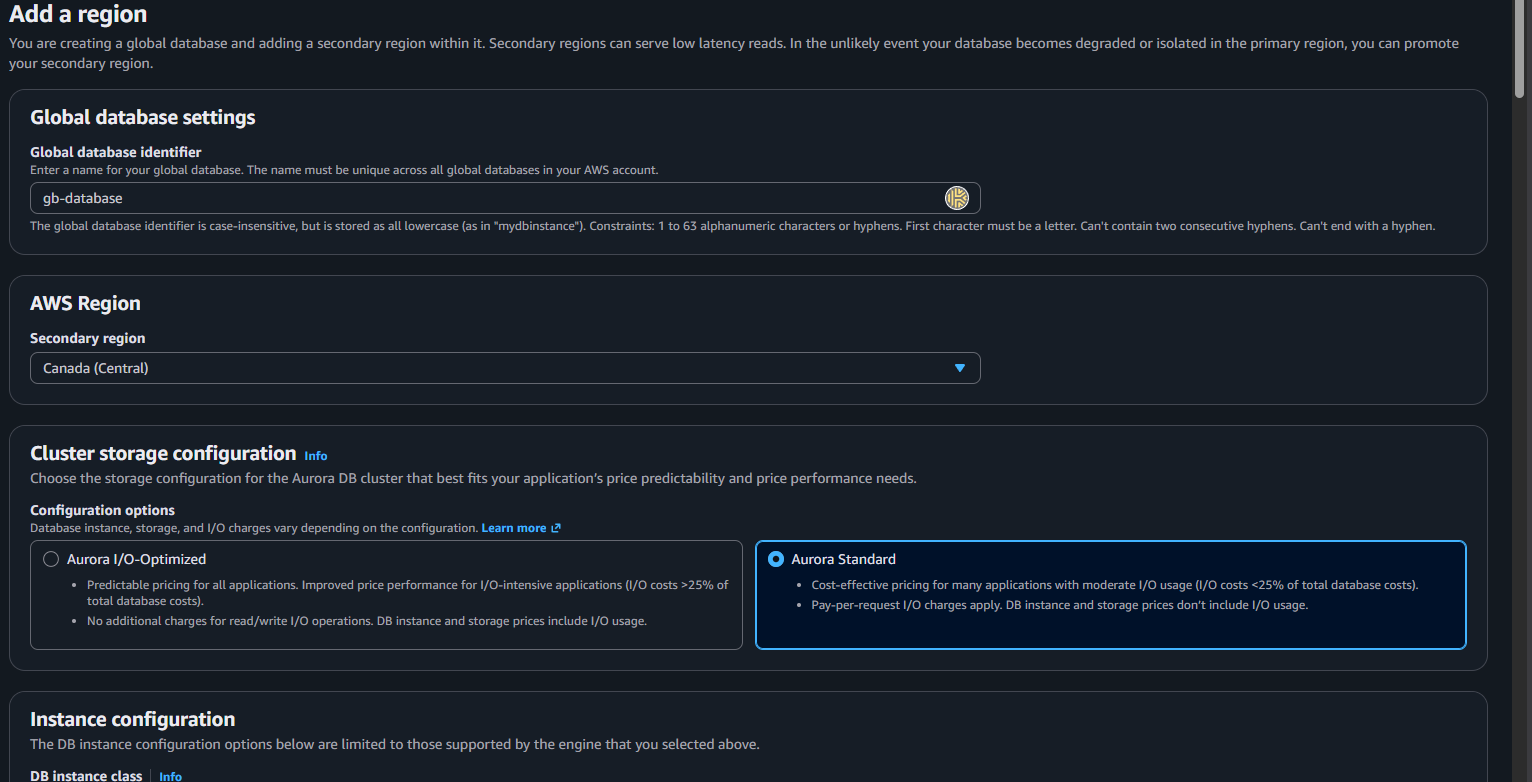
I picked Canada (Central) for the first secondary. I am based in Calgary, so a Canadian copy gives low-latency reads to Canadian users and keeps a full copy of the data out of the United States for resilience. Leave the secondary instance class at db.r5.large to match the primary, and note the encryption key section: because keys do not cross Regions, this is where you choose the KMS key for the secondary, not the primary’s key.
Uncover more details in Aurora Write Forwarding: Writing Through a Read Replica
Why is everything “Modifying”? (and does it reboot?)
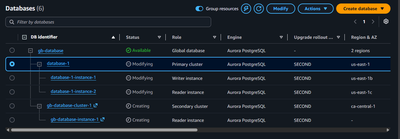
Submit the wizard and the Databases list rearranges into a global-database tree. This is the shot worth keeping:
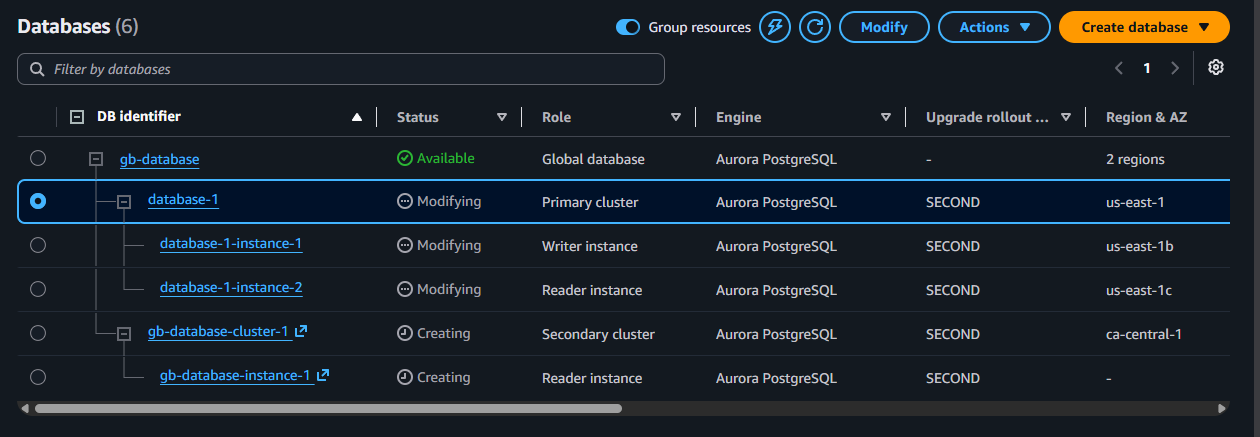
Notice that the primary cluster and both its instances flip to Modifying, while the new Canadian cluster shows Creating. That surprises people: why is my healthy primary suddenly “modifying” when I only added a second Region?
The reason is that Aurora is re-registering your standalone cluster as the primary of a global database and wiring it into the cross-region replication plane. It is a control-plane reconfiguration, not a compute change, so despite the “Modifying” label your writer keeps accepting reads and writes the entire time. AWS is explicit about this:
Journey deeper into this topic with AWS Lambda Configuration Explained: What to Care About (and Why)
From AWS, on adding a Region: “Extending your database to additional Regions has no impact on performance. Cross-Region replication uses dedicated infrastructure in the Aurora storage layer, keeping database resources in the primary and secondary Regions fully available to serve application needs.”
So: “Modifying” here means reconfiguring, not rebooting. No downtime on the primary.
Adding a second region, and the opt-in trap
One secondary proves the concept, but a global database can hold more, so I tried to add Canada West (Calgary) as a second secondary. The wizard opened fine:
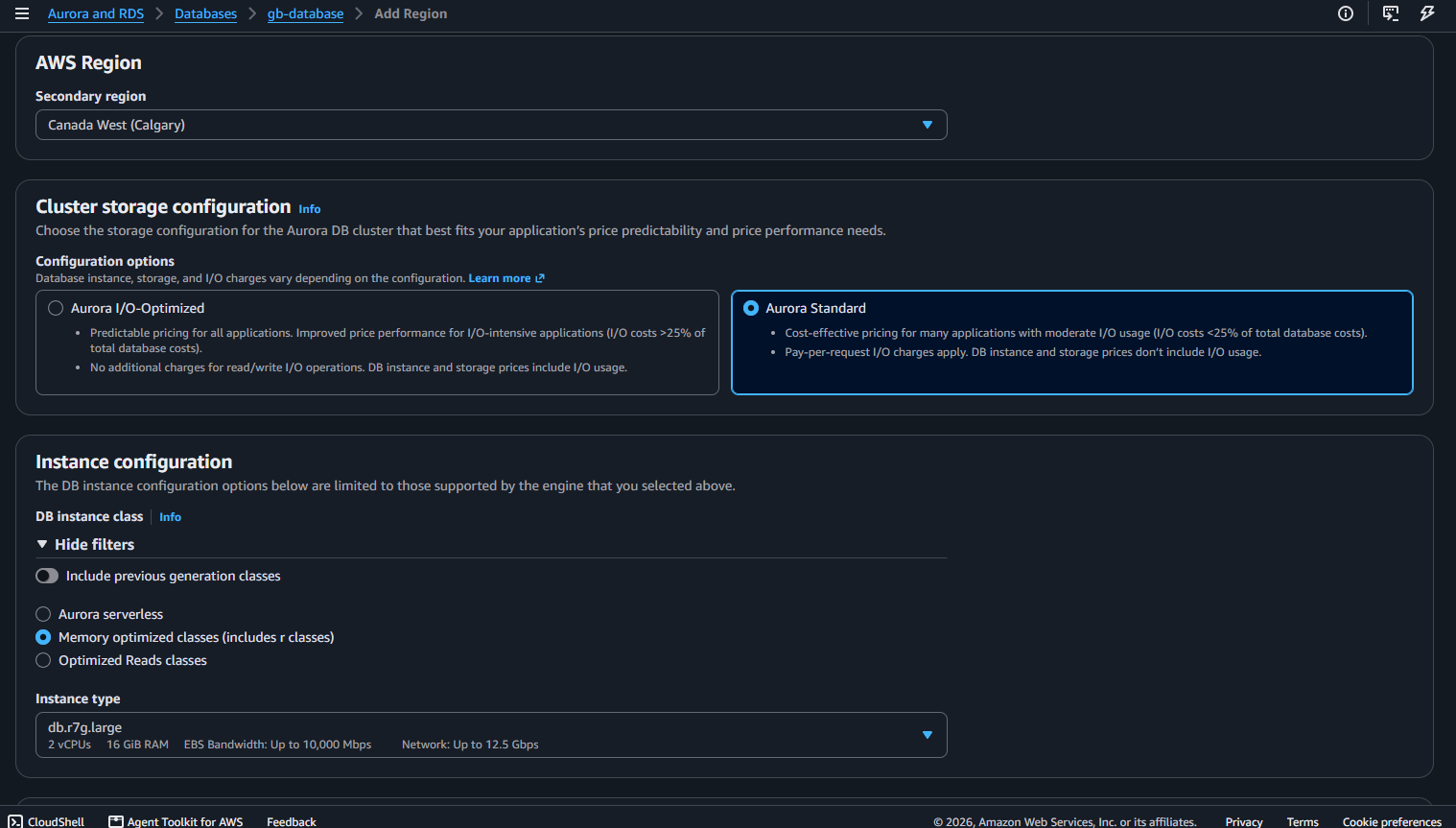
Then the encryption section threw a red error the moment it tried to load keys for Calgary:
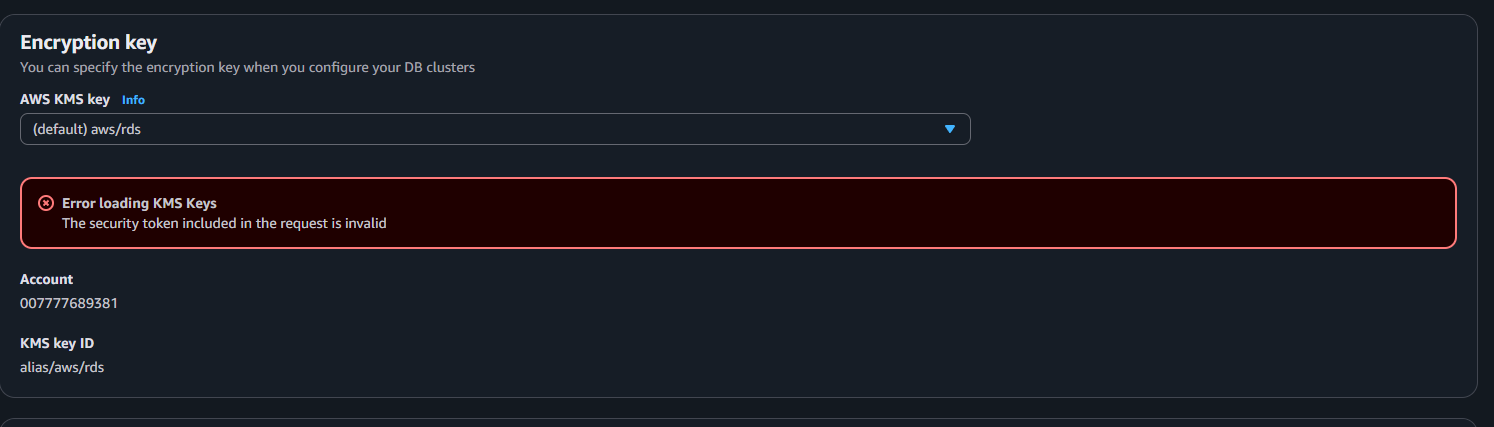
“Error loading KMS Keys. The security token included in the request is invalid.”
This is the third wall, and it has nothing to do with your database. Canada West (Calgary) ca-west-1 is an opt-in Region. AWS ships every Region launched after early 2019 switched off by default, and until you enable it on your account, credentials are not valid there. So when the wizard reaches into Calgary to list KMS keys, the request is rejected. That is also why the first secondary worked without complaint: Canada Central ca-central-1 is enabled by default, while Calgary is not.
The fix is quick:
Enrich your learning with Python for DevOps: Three Cheat Cards and the Traps
- Top-right of the console, click your account name, then Account.
- Scroll to AWS Regions.
- Find Canada West (Calgary) and choose Enable.
- Give it a few minutes to activate, then reopen the Add-Region wizard and the KMS list populates.
Enabling a Region is an account-wide setting and is not instantly reversible, so only turn on a Region you actually intend to use. If you just want the DR win, the already-enabled
ca-central-1 secondary is enough.Package configuration
Configuration aws-region-enable
Enabling a Region is account-wide and not instantly reversible. It applies to every service and every user in the account, not just this database.
If all you want is the disaster-recovery win, the already-enabled ca-central-1
secondary gets you there without touching account settings.
Do you accept?
< Yes >< No >
How far this scales: regions and readers
Once one secondary works, the obvious questions are how many Regions and how many readers you can have. The numbers:
| Scope | Limit |
|---|---|
| Secondary Regions per global database | up to 10 (so 11 Regions with the primary) |
| Readers in the primary cluster | up to 15 |
| Readers in each secondary cluster | up to 16 (a secondary is fully read-only, so it gets one more than a normal cluster) |
There is one catch worth committing to memory: every secondary Region you add costs the primary one reader slot. Add all 10 secondaries and your primary can hold only 5 readers instead of 15. The secondaries are not affected, each still gets its own 16. In practice you add readers in the Regions where your users are, and add Regions where you need resilience.
Gain comprehensive insights from Adding a Read Replica (Reader) to Aurora PostgreSQL
Headless secondaries: cheaper DR, slower recovery
Our secondary is not headless. When I added the Region I let the wizard create a reader instance (gb-database-instance-1), so the Canadian cluster has real compute serving reads. A headless secondary is the other choice: the cluster exists and its storage keeps replicating, but it runs zero DB instances.
Why pick one over the other:
| Aspect | With an instance (what we built) | Headless (no instance) |
|---|---|---|
| Serves reads locally | Yes, low-latency reads in that Region | No, storage replication only |
| Cost | Full instance cost per hour | Storage plus replication only, no compute |
| Failover speed (RTO) | Fast, an instance is ready to promote | Slower, an instance must be created first |
How to make ours headless: delete the reader instance but keep the cluster. In the console, select gb-database-instance-1 and Actions -> Delete. The gb-database-cluster-1 cluster stays, its storage keeps receiving replication, and the bill drops to storage plus replication traffic. To reverse it, add a reader back to that cluster.
Headless is the right default when a Region exists purely for disaster recovery and you do not need to serve reads from it. The trade is recovery time: with no instance running, a failover has to provision one before the promoted Region can take traffic, which pushes your RTO from about a minute into several minutes. If the Region also serves local read traffic, keep the instance.
One practical note: the console always creates one instance when you add a Region, so “headless” is something you switch to afterward by deleting the instance, or you set it up through the AWS CLI, which can create the secondary cluster with no instance at all.
Master this concept through Tuning AWS Lambda for Cost: The Memory Myth, Measured
Failover: promoting a Region and repointing the app
The whole point of a second Region is that you can promote it. Aurora gives you two paths: a managed planned switchover for drills and maintenance (no data loss, roles simply swap), and an unplanned failover for a real regional outage (you promote the secondary manually). One consequence is worth knowing before you rely on it:
From AWS, on restarts across Regions: “If the primary AWS Region’s writer DB instance undergoes a restart or failover, reader DB instances in secondary Regions also restart, and the secondary cluster is then unavailable until all reader DB instances are back in sync with the primary DB cluster’s writer instance.”
In other words, a reboot on the primary writer ripples out to the secondary readers. Adding a Region is free of that, but ordinary operations on the primary are not, so treat a primary reboot as a global event once you are multi-Region.
How the application actually switches Regions
Here is the part that surprises people coming from in-region failover: there is no global endpoint that automatically follows the primary across Regions. In-region, the writer endpoint re-points itself on failover and your app never notices. Across Regions, each cluster keeps its own endpoints in its own Region, so you are responsible for sending the app to the new primary.
The sequence during a real event:
- Promote the secondary. For a planned move (maintenance, a DR drill) use a managed switchover: roles simply swap and no data is lost. For a real outage use an unplanned failover (
failover-global-cluster --allow-data-loss), which promotes the Canadian cluster to a standalone primary that accepts writes. - Repoint the application at the promoted Region’s writer endpoint. The usual way is DNS: put your database hostname behind an Amazon Route 53 record and update it, or use Route 53 health checks with DNS failover so the app follows automatically. For rehearsed, orchestrated failovers, Amazon Application Recovery Controller has a building block made specifically for Aurora Global Database.
The targets AWS designs around are an RPO of about 1 second (at most a second of writes at risk in an unplanned failover) and an RTO of about 1 minute to promote a running secondary. A headless secondary stretches that RTO, since an instance has to be created before the new primary can serve traffic.
Delve into specifics at Aurora Write Forwarding: Writing Through a Read Replica
Verifying replication
You do not need to write anything to confirm the data is live in Canada. Two easy checks:
Deepen your understanding in Tuning AWS Lambda for Cost: The Memory Myth, Measured
- CloudWatch: open the secondary cluster’s Monitoring tab and look at
AuroraGlobalDBReplicationLag. On a quiet demo it sits in the low milliseconds, which is your proof that writes in Virginia are already in Canada. - A read query: the secondary exposes its own reader endpoint (
gb-database-cluster-1.cluster-ro-....ca-central-1.rds.amazonaws.com). Connect to it withpsqlfrom an EC2 box in the secondary Region (a cross-region private connection will not work without extra networking) and runSELECT pg_is_in_recovery();. It returnst, confirming the Canadian copy is a live, read-only replica, exactly like the in-region reader from the previous article.
Using a global database from your application
Day to day, a global database follows one hard rule: only the primary Region accepts writes. Everything else follows from that.
- Writes go to the primary Region’s writer endpoint (
database-1.cluster-....us-east-1.rds.amazonaws.com), exactly as before you went global. - Reads can go to the local Region’s reader endpoint. A service running in Canada reads from the
ca-central-1reader endpoint and gets data that is at most a second stale, with no cross-continent round trip.
So a Canada-based app reads locally (fast) and sends its writes down to Virginia. That write hop is the one unavoidable latency cost of a single-writer design.
Write forwarding removes the awkward part
Making your app juggle “local reader for reads, remote writer for writes” is fiddly. Aurora PostgreSQL solves it with global write forwarding: point the app at the secondary reader endpoint for both reads and writes, and Aurora quietly forwards the writes to the primary for you.
From AWS: “With write forwarding, your applications can simply send both read and write requests to a reader in a secondary Region, and Global Database will take care of forwarding the write requests to the writer in the primary Region.”
Write forwarding needs a recent engine: Aurora PostgreSQL 16 and higher (all minor versions), or 15.4+ / 14.9+. Your cluster runs 17.7, so it is available. You enable it when adding the Region (or by modifying the secondary), and per session you choose how fresh a forwarded read must be:
-- how up to date reads must be after a forwarded write:
-- eventual (fastest) | session (read your own writes) | global (strongest)
SET apg_write_forward.consistency_mode = 'session';
Use eventual for dashboards that can lag, session when a user must see their own just-submitted change, and global only when you truly need every reader to reflect the write before you continue. For a full hands-on walkthrough of both the local and global variants, see Aurora Write Forwarding.
Deepen your understanding in Tuning AWS Lambda for Cost: The Memory Myth, Measured
A few more questions people ask
What exactly am I billed for? Three things on top of the primary: the secondary Region’s instances (unless it is headless) and storage, the replicated write I/O, and cross-Region data transfer for everything shipped north. There is no separate “global database” charge, it is the sum of the parts in each Region.
What are the RPO and RTO? Roughly 1 second of data at risk (RPO) and about a 1 minute promotion (RTO) for a running secondary. Headless pushes the RTO higher because an instance has to be provisioned first.
Do new tables and schema changes replicate? Yes. Replication happens at the storage layer, below SQL, so everything the primary writes (rows, new tables, index builds, DDL) reaches the secondary automatically. You never sync schema separately.
Can I add a Region to a database that already has data? Yes, that is exactly what we did here. Aurora copies the existing volume to the new Region once, then keeps it in sync. There is no “start empty” requirement.
Does a global database span AWS accounts? No. Every cluster in a global database lives in the same AWS account, just across Regions. Sharing data with a different account is a separate problem you would solve with other tooling, not global database.
Deepen your understanding in Tuning AWS Lambda for Cost: The Memory Myth, Measured
Clean up (do this today)
This build is the most expensive one in the series: with the upgrade you are running db.r5.large instances in two Regions, which lands around $0.87/hour (roughly $20 per day) before cross-region transfer. Tear it down the same day:
- Remove the secondary from the global database. Select the secondary cluster, Actions → Remove from Global Database, then delete that cluster.
- Delete the global database object (
gb-database) once it is empty. - Downsize or delete the primary. If you are keeping
database-1for later articles, modify it back todb.t3.mediumto stop the r-class charge, otherwise delete it.
Deleting the secondary never touches the primary’s data, the two clusters are independent copies linked by replication.
Deepen your understanding in Tuning AWS Lambda for Cost: The Memory Myth, Measured
Wrapping up
Adding a Region turns one database into a global one, and the mechanics are mostly about clearing the prerequisites: upgrade off burstable instances, respect the per-Region KMS rule, and enable any opt-in Region before you point the wizard at it. Once those are out of the way the replication itself is invisible and sub-second, and your data survives the loss of an entire Region. Plan the single reboot for the instance-class change, mind the cost of instances in two Regions, and you have real cross-region disaster recovery. For the shell and SQL around all of this, see my Ubuntu Terminal cheatsheet.
Deepen your understanding in Tuning AWS Lambda for Cost: The Memory Myth, Measured
References and Further Reading
- Amazon Web Services. Using Amazon Aurora Global Database.
- Amazon Web Services. Adding an AWS Region to an Amazon Aurora global database.
- Amazon Web Services. Amazon Aurora Global Database (product page).
- Amazon Web Services. Managing AWS STS in an AWS Region (enabling opt-in Regions).
- Amazon Web Services. Choosing the right type of AWS KMS key for a global database.
Question
Would you run active-active across Regions, or keep one primary with warm secondaries for DR only?
Similar Articles
Related Content
More from cloud
Atuin replaces your shell history with a searchable database: fuzzy matching, filter by directory, …
Cut AWS Lambda cost: what you are actually billed for, why more memory is rarely cheaper, the exact …
You Might Also Like
Livestream from your phone with Amazon IVS and no code, with every channel setting explained: …
Design an AWS Lambda system for a million users an hour: capacity math, concurrency, cold starts, …
Knowledge Quiz
Test your general knowledge with this quick quiz!
A set of multiple-choice questions to test your knowledge.
Take as much time as you need.
Your score will be shown at the end.
Question 1 of 5
Score: 0
Quiz Complete!
Your score: 0 out of 5
Loading next question...
Contents