Learn kubectl annotate step by step: add, overwrite and remove annotations, record …
/user/kayd
@
devops
:~$
cat ec2-root-volumes-vs-file-systems.md
EC2 Storage in Plain English: Root Volumes vs File Systems EC2 Storage in Plain English: Root Volumes vs File Systems


Karandeep Singh
• 8 minutes
Summary
The EC2 launch wizard’s storage step has two very different parts, the root volume and the File systems panel, and beginners mix them up. This explains both in plain words, plus when to reach for each.
When you launch an EC2 instance, most of the wizard is quick, name it, pick an operating system, pick a size. Then you hit Configure storage, and suddenly there are two sections that look related but are not: a box at the top for the root volume, and a panel at the bottom called File systems with options like S3, EFS, and FSx.
New folks almost always mix these two up. So this article slows down on exactly that step and explains, in plain words, what each part is and when you would actually use it. It uses the real screenshots from launching a small demo-web instance.
This is the storage-focused companion to launching your first EC2 instance. You do not need any prior setup to follow along, just an AWS account and the Launch instance button. Everything here fits inside the free tier.
Setting the scene: the launch, in three quick steps
Before the storage step, the wizard asks for three things. I will move through them fast so the storage part has context.
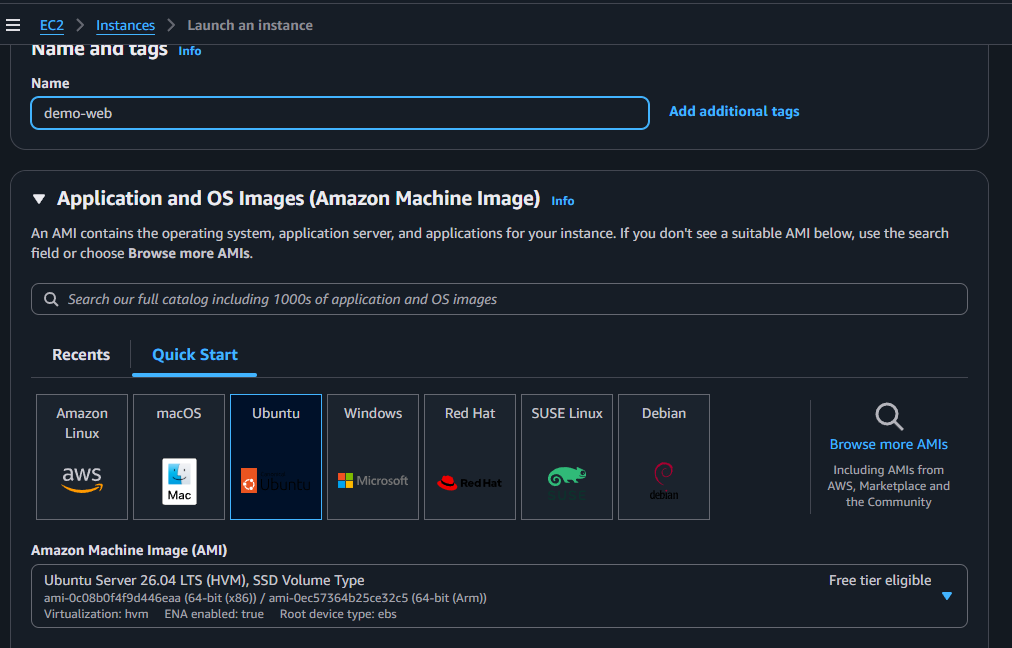
Name and operating system. I named the instance demo-web and picked Ubuntu. Notice the AMI is marked Free tier eligible, and near the bottom it says Root device type: ebs, that “ebs” is a hint about the root volume we are about to meet.
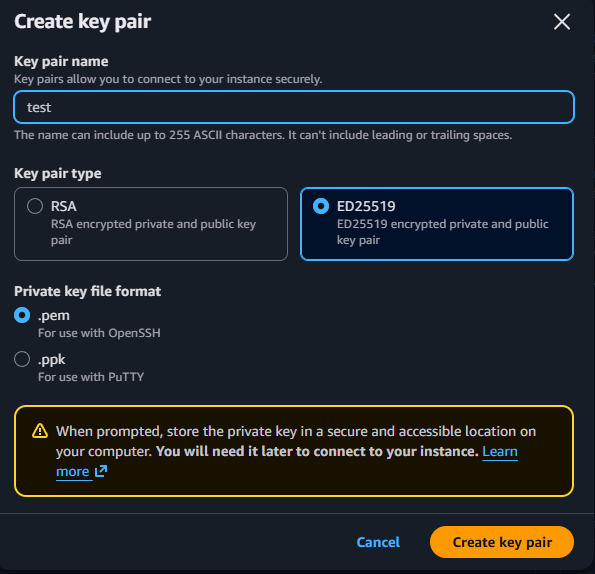
A key pair to log in. I created a key pair named test using the ED25519 type and .pem format. This is the private key you use to SSH into the box, download it and keep it safe, because AWS will not show it to you again.
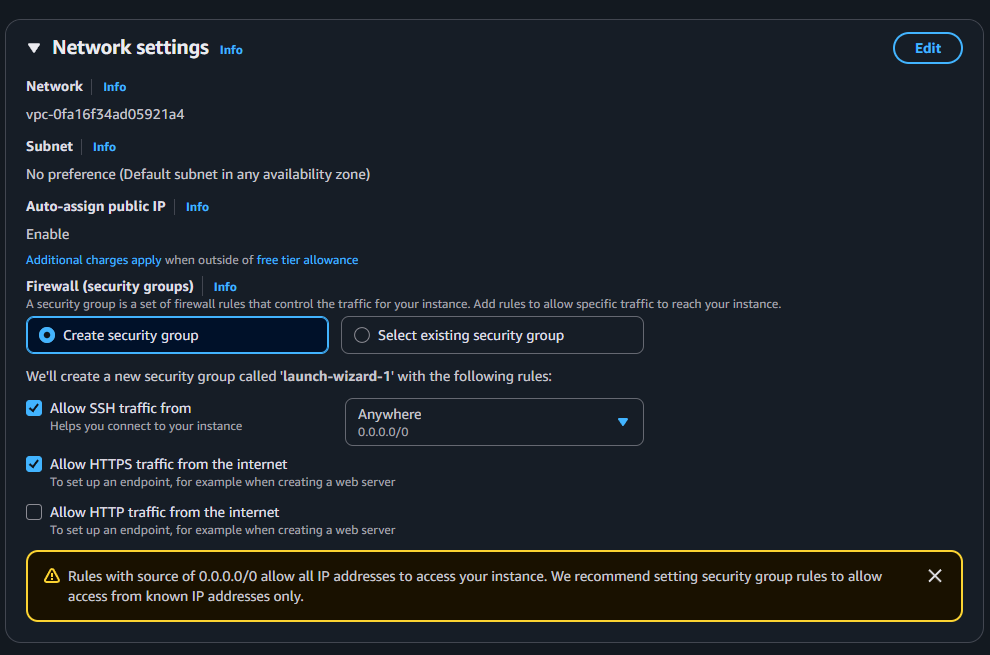
Network and firewall. The wizard made a security group called launch-wizard-1 and, by default, opened SSH from Anywhere (0.0.0.0/0). AWS even shows a yellow warning about it, and it is right to. For anything real, you would change that SSH source to My IP so the whole internet cannot knock on your door. For a five-minute demo it is fine, but notice the warning is there for a reason.
Now the part we came for.
Expand your knowledge with Livestream From Your Phone to AWS with IVS (and What Every Setting Means)
Part 1: the root volume, your instance’s own disk
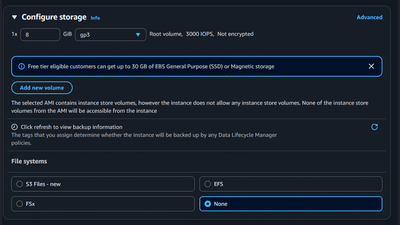
The top box in Configure storage is your root volume. Think of it as the built-in hard drive of your server. It is where the operating system from the AMI lives, plus anything you install later. In my case: 8 GiB, type gp3, labeled Root volume, 3000 IOPS, Not encrypted.
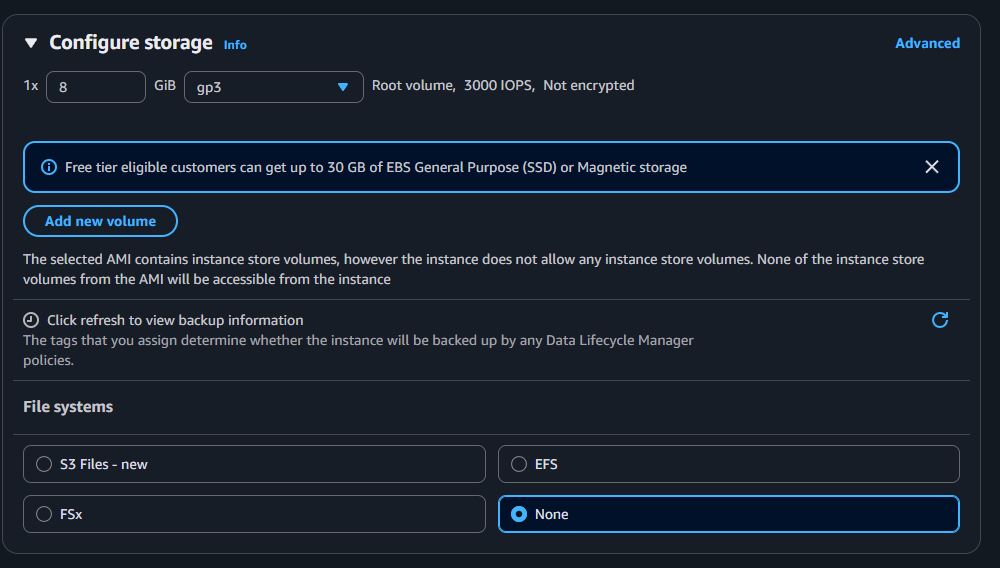
A few plain-English facts about the root volume:
- It belongs to one instance. Just like the C: drive on a laptop, no other server shares it. If you launched five instances, each gets its own separate root volume.
- It is an EBS volume. EBS (Elastic Block Store) is AWS’s disk-in-the-cloud service. The disk is not physically inside the server, it is attached over the network, but to the operating system it looks and behaves like a normal local drive.
- By default it disappears with the instance. The root volume is set to delete on termination. Terminate the instance and the disk (and everything on it) is gone. That is usually what you want for a throwaway box, but it is the single biggest “where did my data go” surprise for beginners.
- It lives in one Availability Zone. An EBS volume is tied to the same AZ as its instance. You cannot attach it to an instance in another zone.
Rule of thumb: put the operating system and your app on the root volume, but do not keep anything you truly care about only there. Important data belongs somewhere that outlives a single instance, a separate EBS data volume you back up, or one of the file systems below.
Root volume types (the gp3 dropdown)
Open the type dropdown and AWS offers several disk types. Here is the same list, in plain terms:
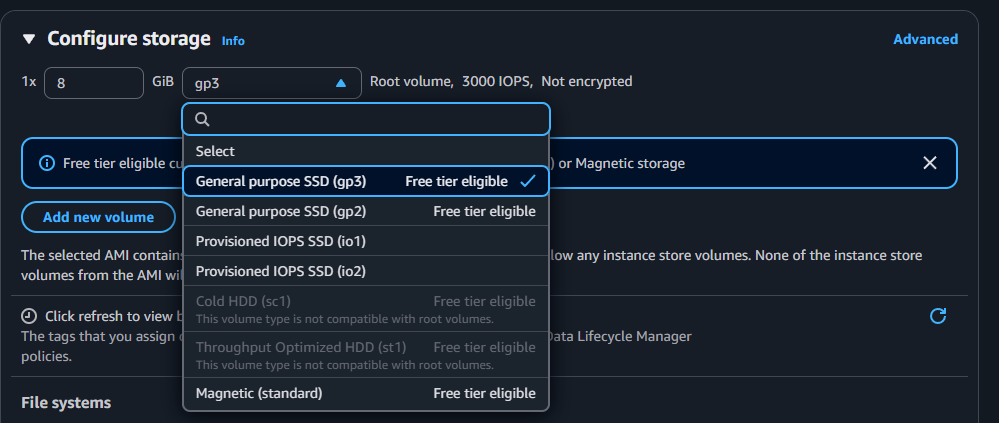
| Type | What it is | Reach for it when |
|---|---|---|
| gp3 (General Purpose SSD) | The modern default. Fast SSD, steady 3000 IOPS baseline, best price for performance | Almost everything, this is the right default |
| gp2 (General Purpose SSD) | The older general-purpose SSD; speed scales with size | Only if you have a specific reason; gp3 is usually better and cheaper |
| io1 / io2 (Provisioned IOPS SSD) | You pay for a guaranteed, very high number of IOPS | Demanding databases that need consistent, heavy disk performance |
| sc1 (Cold HDD) | Cheap spinning-disk storage for data you rarely touch | Big, infrequently accessed data, not a root volume |
| st1 (Throughput Optimized HDD) | Cheap disk tuned for large sequential reads | Big streaming workloads like logs or data processing, not a root volume |
| Magnetic (standard) | Previous-generation magnetic storage | Legacy only; avoid for new work |
Notice that sc1 and st1 are greyed out in the screenshot with “not compatible with root volumes.” That is the wizard reminding you those HDD types are meant for extra data volumes, not for booting an operating system. For the root disk, gp3 is the answer 95% of the time.
Deepen your understanding in Livestream From Your Phone to AWS with IVS (and What Every Setting Means)
Part 2: the File systems panel, shared storage that lives on its own
Below the root volume is a panel titled File systems, with four choices: S3 Files - new, EFS, FSx, and None (selected by default).
This is where the confusion starts, so here is the key idea:
A root volume is one instance’s private disk. A file system is separate, shared storage that many instances can connect to, and that keeps existing even after every instance is gone.
You do not need a file system to run a server, that is why None is the default. You add one when several machines need to share the same files, or when you need storage that outlives any single instance. Here is what each option means.
EFS, a shared folder for many Linux servers
Amazon EFS (Elastic File System) is a managed shared file system for Linux. Many instances, even across different Availability Zones, can mount it at the same time and all see the same files instantly. It grows and shrinks automatically, you never pick a size.
Use it when: several servers need to read and write the same files, a fleet of web servers serving the same uploads, a shared home directory, a content folder behind a load balancer.
FSx, managed file systems for Windows and high performance
Amazon FSx is a family of managed file systems for more specialized needs. The common ones are FSx for Windows File Server (a proper Windows/SMB network share) and FSx for Lustre (an ultra-fast file system for heavy compute like machine learning or simulations).
Use it when: you need a Windows file share with Active Directory, or seriously high-performance shared storage for HPC-style workloads.
S3, cheap and massive object storage
Amazon S3 is object storage, the internet’s default bucket for files. It is not a normal disk, but AWS now lets you mount an S3 bucket so it looks like a folder on your instance. It is extremely cheap, essentially unlimited, and reachable from anywhere, but slower and less “filesystem-like” than EFS.
Use it when: you are storing lots of files that do not need low-latency disk behavior, backups, images and videos, logs, data-lake files, static website assets.
None, the honest default
For a single server, None is correct. Your instance runs entirely on its root volume, and there is nothing extra to configure, pay for, or clean up. Only add a file system when you actually have the “many machines share this” or “must outlive the instance” problem.
Explore this further in S3 Files on EC2: Mount an S3 Bucket as a File System (the Honest Guide)
Root volume vs file system: the one-glance mental model
| Aspect | Root volume (EBS) | File system (EFS / FSx / S3) |
|---|---|---|
| Who can use it | One instance only | Many instances at once |
| What it feels like | The C:/ drive on a laptop | A shared network drive |
| Survives instance deletion? | No, deleted by default | Yes, it lives on its own |
| Where it lives | One Availability Zone | Across zones / regions (varies) |
| You need it to boot? | Yes, the OS lives here | No, it is optional extra storage |
| Good for | The OS and the app itself | Shared files, backups, big data |
When do you actually use each? A quick decision guide
- Running one simple server or app? The root volume alone is enough. Maybe bump it from 8 GiB if you need room.
- Need more disk on one box, separate from the OS? Add a second EBS data volume (gp3). It can survive even if you rebuild the instance.
- Several Linux servers sharing the same files? Reach for EFS.
- Windows file share, or HPC-grade shared storage? That is FSx.
- Piles of backups, media, logs, or data-lake files? Use S3.
What it costs (and staying free)
The root volume in this demo, 8 GiB of gp3, is comfortably inside the free tier (up to 30 GB of EBS is free for the first year). EFS, FSx, and S3 all bill separately, which is another reason to leave File systems on None until you genuinely need one. And remember: because the root volume deletes on termination, tearing down the demo instance also removes its disk, so there is nothing lingering to pay for.
Journey deeper into this topic with Tuning AWS Lambda for Cost: The Memory Myth, Measured
Wrapping up
The storage step trips people up only because two unrelated things sit next to each other. Once you see it clearly, it is simple: the root volume is your instance’s private boot disk (use gp3), and the File systems panel is optional shared storage you bolt on when many machines, or long-lived data, need it. Most first instances want a gp3 root volume and nothing else.
If you are scripting any of this against AWS afterwards, my Python Boto3 cheatsheet and Ubuntu Terminal cheatsheet pair nicely with a fresh EC2 box.
Enrich your learning with Adding an AWS Region to Aurora PostgreSQL (Global Database)
References and Further Reading
- Amazon Web Services. Amazon EBS volume types.
- Amazon Web Services. Amazon EFS User Guide.
- Amazon Web Services. Amazon FSx.
- Amazon Web Services. Mountpoint for Amazon S3.
Question
For your own workloads, where do you draw the line between a bigger EBS data volume and moving to a shared file system like EFS?
Similar Articles
Related Content
More from cloud
Atuin replaces your shell history with a searchable database: fuzzy matching, filter by directory, …
Cut AWS Lambda cost: what you are actually billed for, why more memory is rarely cheaper, the exact …
You Might Also Like
Livestream from your phone with Amazon IVS and no code, with every channel setting explained: …
Design an AWS Lambda system for a million users an hour: capacity math, concurrency, cold starts, …
Knowledge Quiz
Test your general knowledge with this quick quiz!
A set of multiple-choice questions to test your knowledge.
Take as much time as you need.
Your score will be shown at the end.
Question 1 of 5
Score: 0
Quiz Complete!
Your score: 0 out of 5
Loading next question...
Contents